See also: Test Type Working Principles

A speech test for speech audiometry must be created once for further use. This can be done either manually or it can be uploaded from a pre-built speech test. This page explains how to create it manually. For this, you need administrator rights. You can publish this test to share it with colleagues in other centres.
If you have a speech test with word lists, either as wave files or as audio tracks, these lists can be uploaded into Audiqueen.
Use the Administrator Tools and find the Extension Manager to create your own test.
Alternatively you can also click this button to create your own speech audiometry.
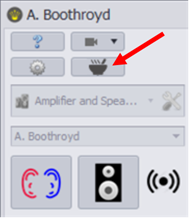
Click on Add and then Speech Audiometry to start creating a new speech test.

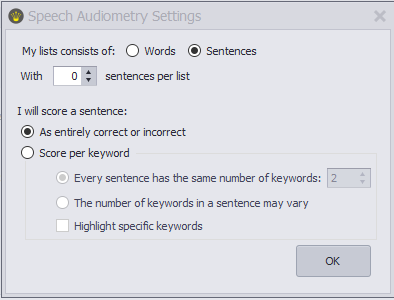
Specify whether the list consists of words or sentences, how many items each list will contain, and whether scoring will be per item or per segment. Note that in a sentence list, the items are sentences and the segments are words, whereas in a word list, the items are words and the segments are phonemes.
| Words | Sentences |
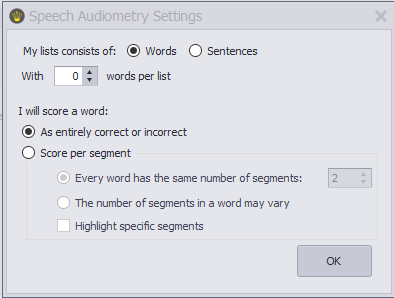 |  |
Note that in a word list, the items are words and the segments are phonemes,
whereas in a sentence list, the items are sentences and the segments are words .
If you choose segment scoring, you must specify whether each item has a fixed number of segments or not. If not, you will need to select the segments to be scored for each item later on. You can also specify whether the relevant segments should be highlighted during the test. This allows the audiologist to see which segments are involved.
Design your test
Now you can design your speech audiometry test.
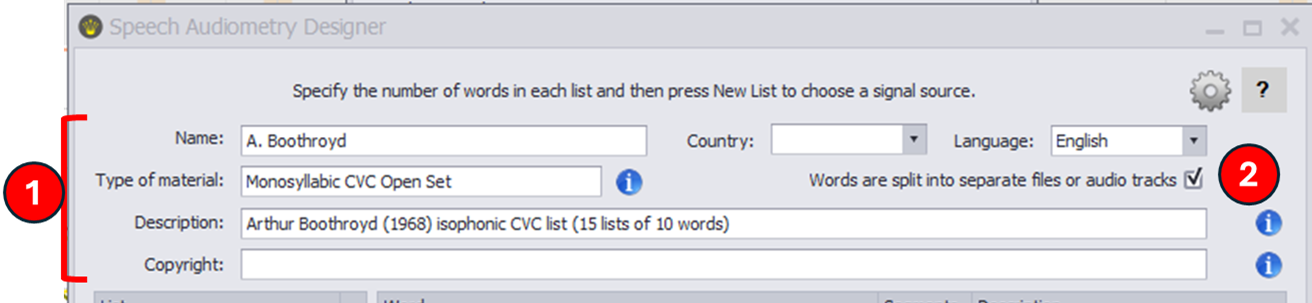
(1) In the first fields, enter the details of your choice.
(2) Specify whether each wave file contains a single item or a whole list of items.
(3) Click on ‘New List’ to upload your first list of words or phrases
Option 1: each file contains 1 item
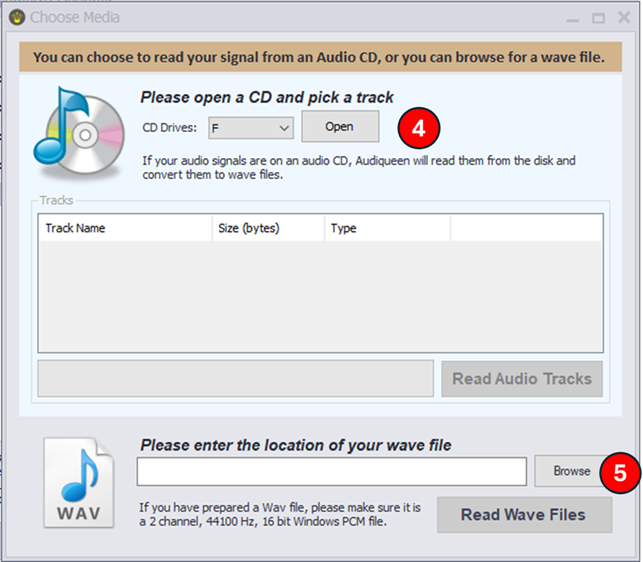 | 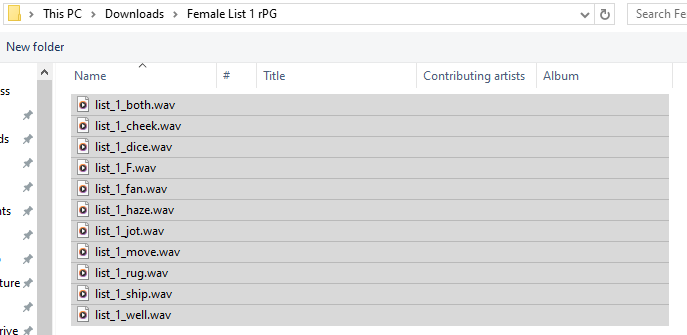 |
(4) for audio files on CD: locate the audio tracks; (5) for WAV files: locate the files on your PC | You can now select the files for the first list of words or phrases. |
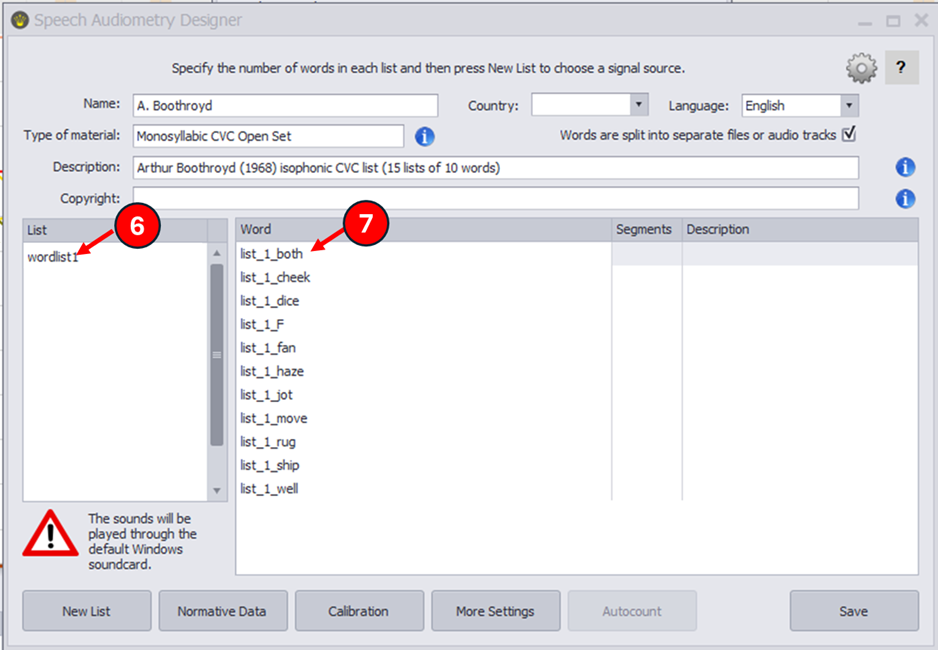 | The list of words or phrases will now appear in Audiqueen.
You can change the name of the list (6) or the item (7) by double-clicking on it. If you double-click on the item (word or phrase), you will also hear it. |
If you click on “New List”, you can load the following list.
Option 2: each file contains a full list of items
|  |
(4) for audio files on CD: locate the audio tracks; (5) for WAV files: locate the files on your PC | You can now select the file containing the first list of words or phrases. |
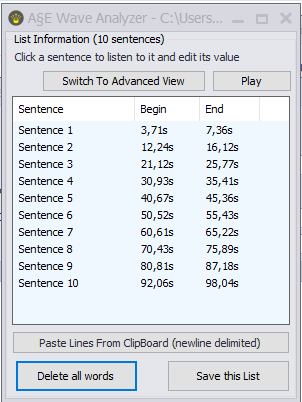 | Audiqueen analyses the file and attempts to identify the correct number of items. These are then displayed. You can change the name of an item by double-clicking on it. If you have the list of names in MS Word, you can copy it using Ctrl+C and paste it here as a whole list. If Audiqueen is unable to recognise the correct number of items, the wave analyser will open, allowing you to manually mark the items.
|
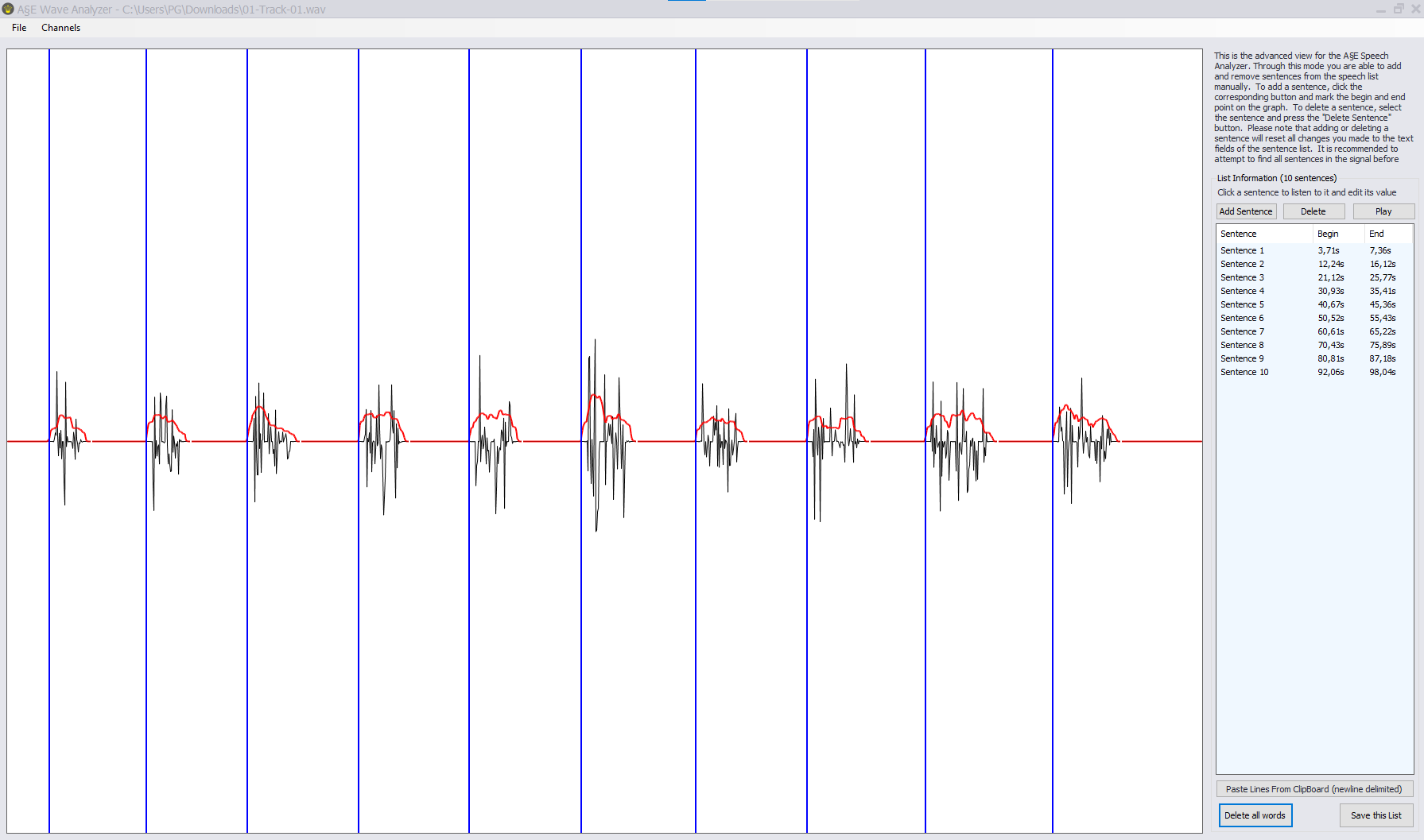
If you click on “New List”, you can load the following list.
Highlighting key segments
If you indicated at the start that you wish to highlight the relevant segments (typically the keywords), you must enclose them in square brackets here.
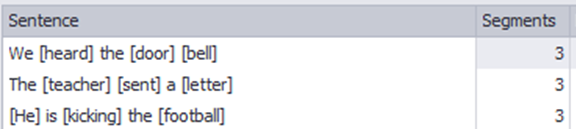 The brackets indicate the words that will be underlined during the test. | 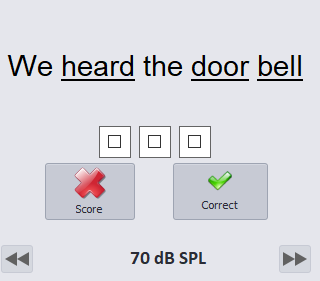 |
Normative data
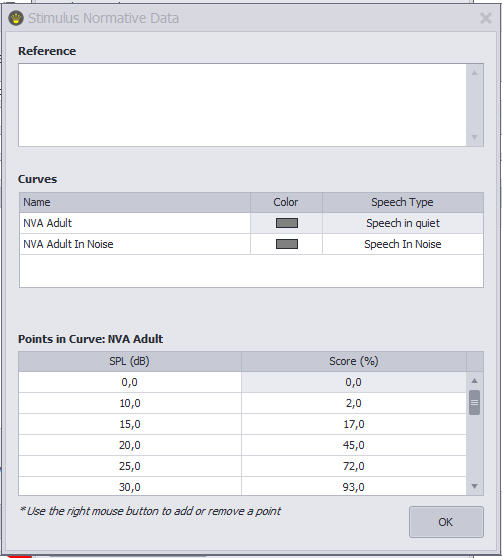 | Click on ‘Normative Data’ to enter the normal curves for quiet and noisy conditions. These will then be displayed automatically on the speech audiogram. 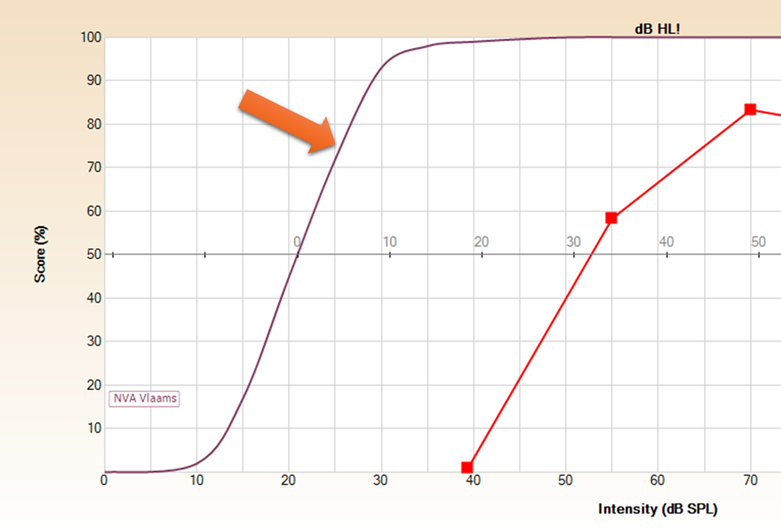 See also this support page. |
Calibration File
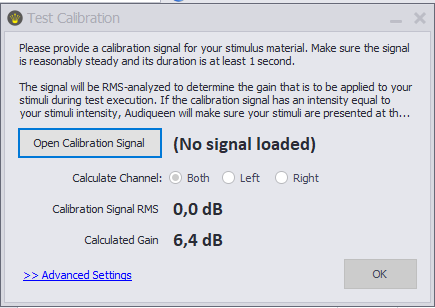 | You should load a calibration signal to ensure that the stimuli are presented at the correct presentation level. |
More settings
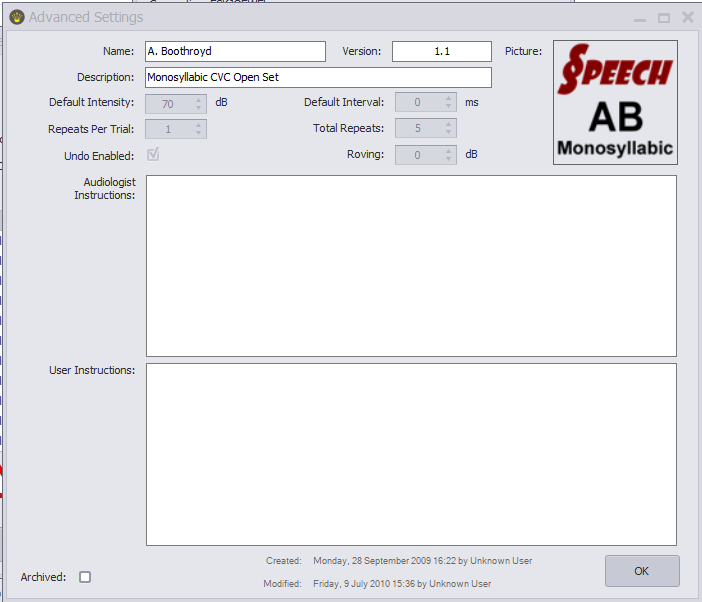 | Use the More Settings button to change a number of settings, add an icon to the test, add instructions for the audiologist or the user, or to archive the test. |
Publish
Once you’re ready, you can publish the test. It will then become an auqext file that others can download and install. As they are not the author, they cannot edit the test.
See also:
- How can I create my own Sound Detection Test?
- How can I create my own Sound Discrimination Test?
- How can I create my own Sound Identification Test?
You may have a look at an old instructional video on building your own speech audiometry.
 | This feature is not available in the web viewer. |
Was this article helpful?
That’s Great!
Thank you for your feedback
Sorry! We couldn't be helpful
Thank you for your feedback
Feedback sent
We appreciate your effort and will try to fix the article