Do you ever think it would be useful to receive a tip, a message or an alert when a certain value is reached during audiometry, speech audiometry or any other test? If so, the AudioTips feature is the solution for you.
AudioTips allow Audiqueen to display messages (alerts) when a test result or a combination of test results meets certain criteria. One of the many examples could be the indication for a cochlear implant, for which certain unaided audiometric thresholds and aided speech audiometric results are required.
An AudioTip consists of one or more criteria, followed by a message that appears when those criteria are met.
How to create an AudioTip?
It requires administrator rights to create an AudioTip.
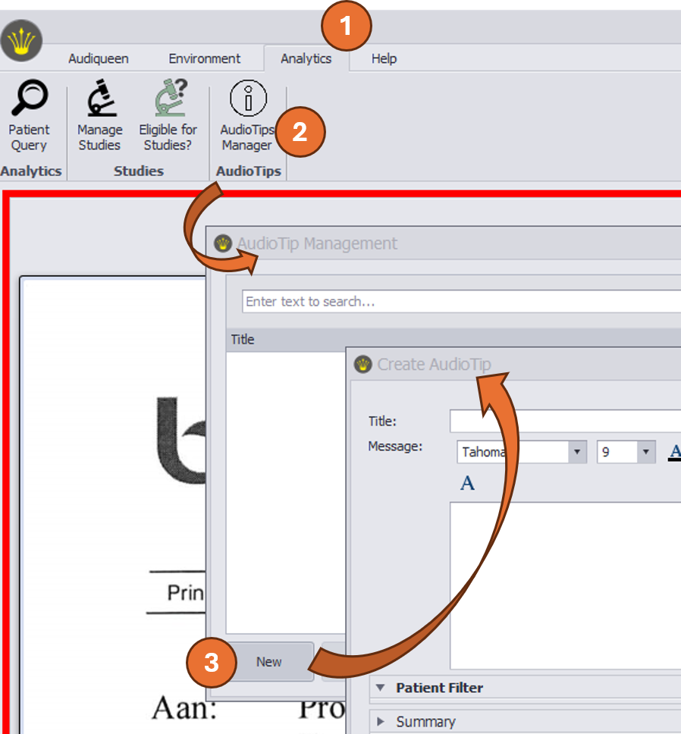 | Go to (1) Analytics to open (2) AudioTips Manager, then click on (3) New to create an new AudioTip. |
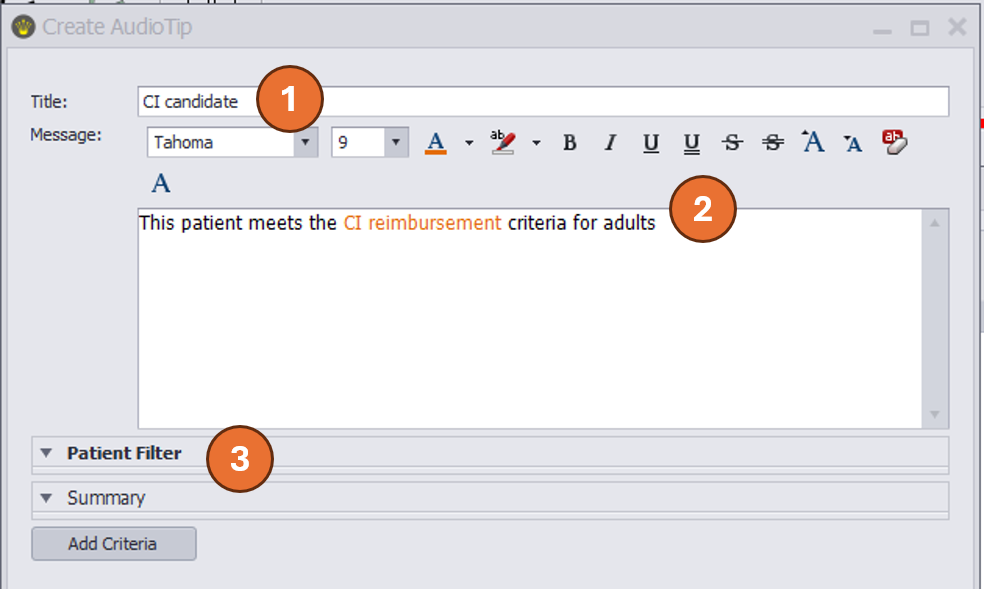 | Enter the title (1) of the AudioTip and (2) provide the message that the user will receive if the criteria are met. You can format the text as you wish. You can now enter criteria in a way that is very similar to the Patient Query in Analytics. First, (3) enter the criteria using the patient’s administrative details (such as name, DOB, events, ...). You may leave these fields blank. |
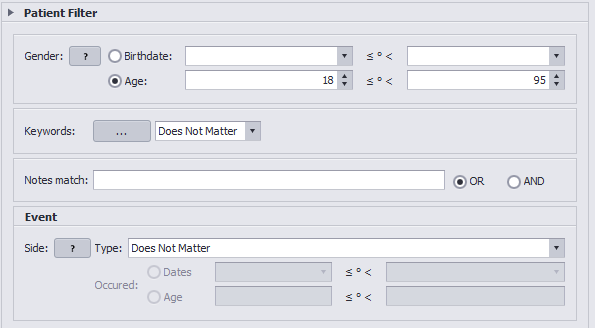 | In this example, only the age criterion applies, namely between 18 and 95 years of age. |
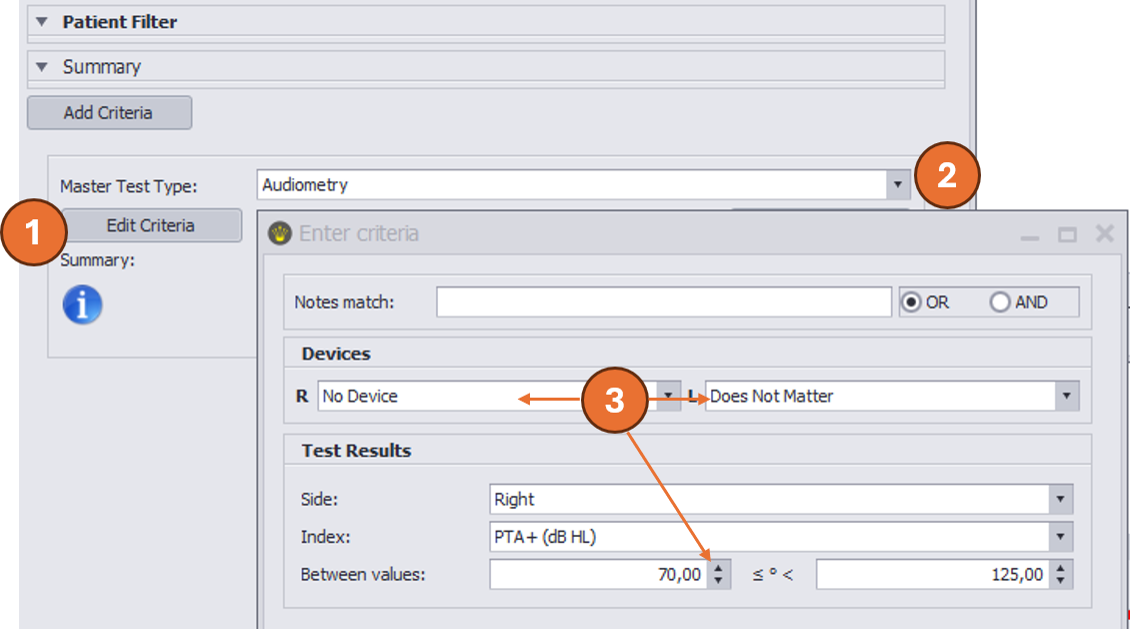 | Now enter the test criteria by clicking on ‘Edit Criteria’ (1). Then select the test type (2) and then the criteria (3). In this example, the criterion is that the right ear must have an unaided audiometric threshold of between 70 and 125 dB. Note that this has only been entered for the right ear. As you want this for both ears, a second criterion will need to be created below for the left ear (see below). If the side is not specified, Audiqueen would consider the criterion to be valid provided that either ear met this criterion. |
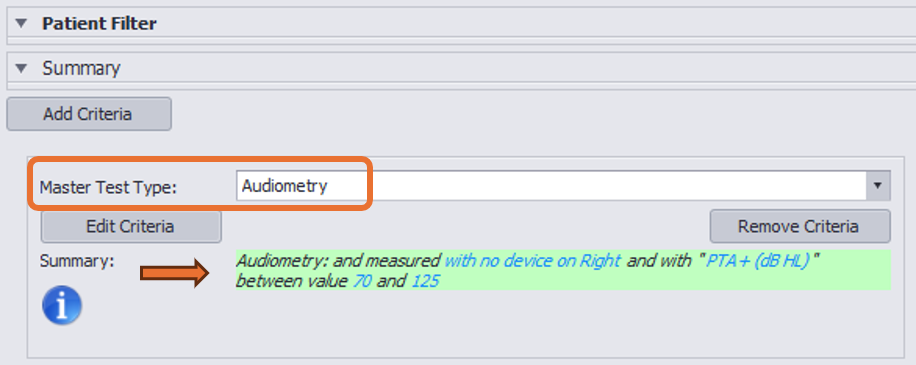 | After saving, Audiqueen shows that this first test result is the Master Test Type and provides a summary of the criterion. You can edit or remove this. |
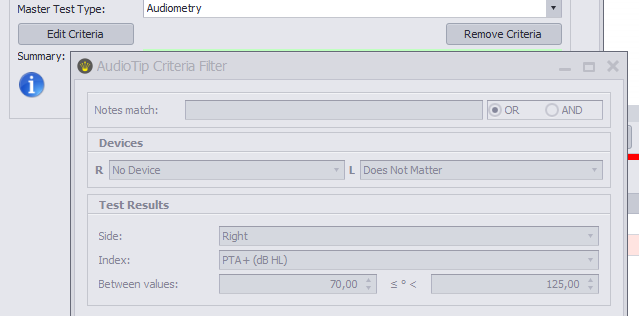 | Hovering your mouse over the ‘i’ icon displays the exact content of the criterion in read-only view. |
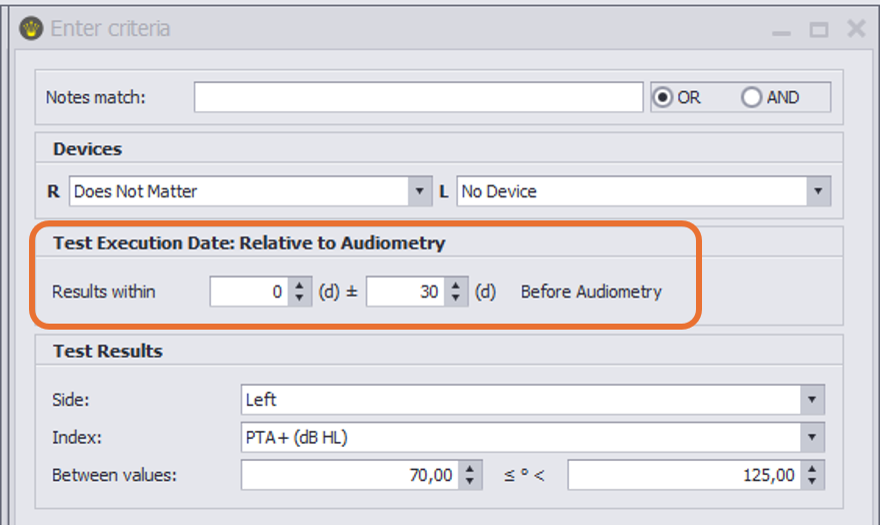 | You can now enter a further criterion under the same AudioTip. The various criteria are linked by an ‘AND’ operator, which means that they must all be met in order to trigger the AudioTip. For each subsequent criterion, you must also specify the time window within which the result must be obtained. This time window is determined relative to the date of the Master test result (the first criterion). In this example, the audiometric criterion now also applies to the left ear. Consequently, both ears must therefore have unaided thresholds worse than 70 dB. |
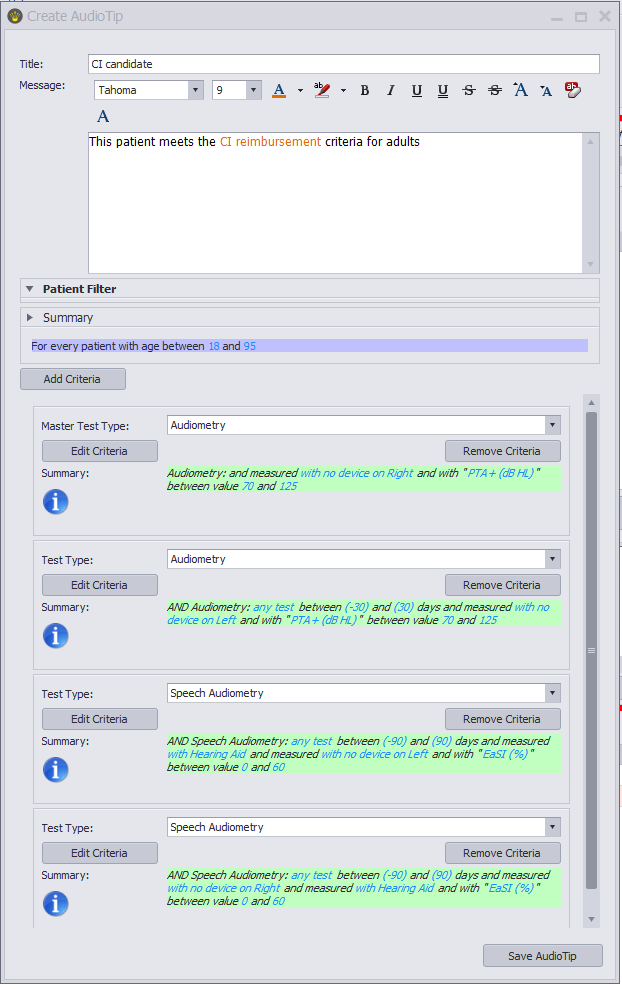 | The AudioTip ‘CI candidate’ is now ready. As soon as a patient has unaided audiometric thresholds of ≥70 dB and an aided speech audiometry score of less than 60 per cent in each ear, the message ‘This patient meets the CI reimbursement criteria for adults’ will appear. |
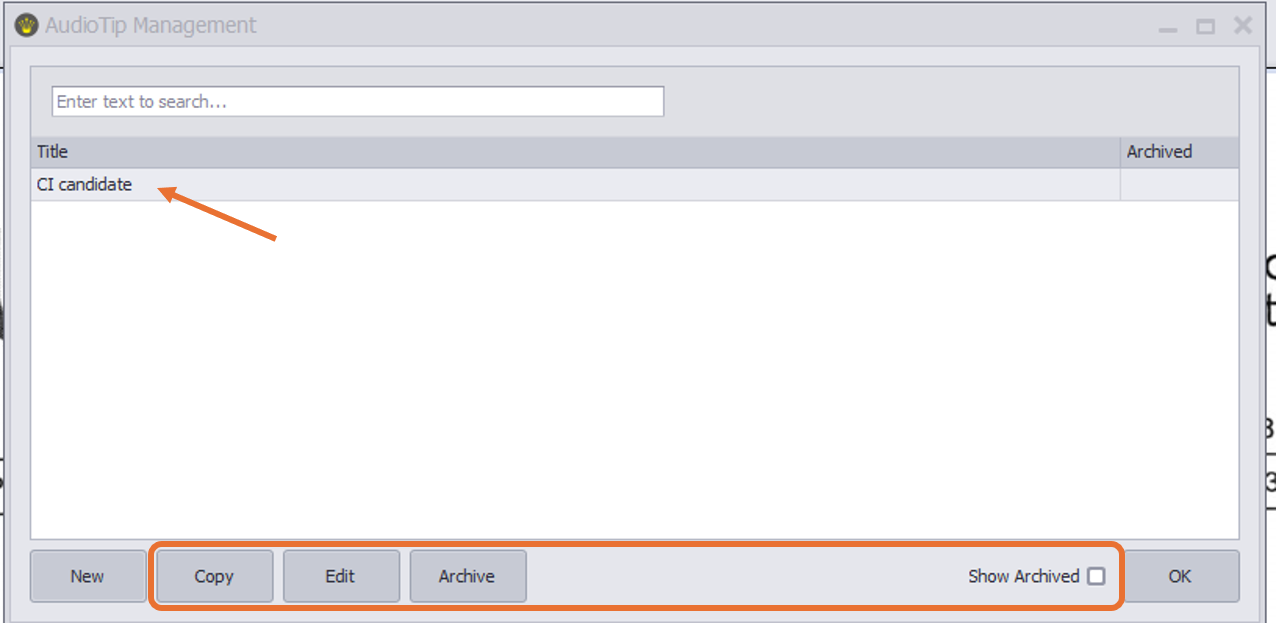 | The AudioTip appears in the list of AudioTips in the AudioTip Management window. You can edit it, archive it, or copy it if you wish to create another AudioTip based on this one. |
How and when does the AudioTip appear automatically?
When saving each result, Audiqueen checks whether the criteria for an AudioTip have been met. If so, the message appears.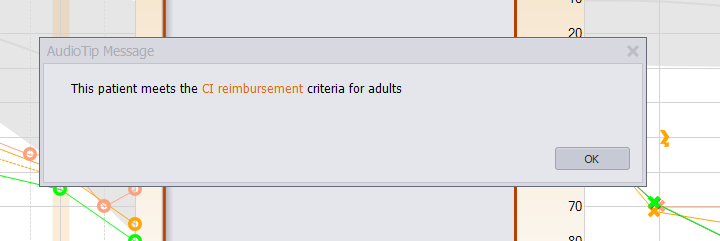
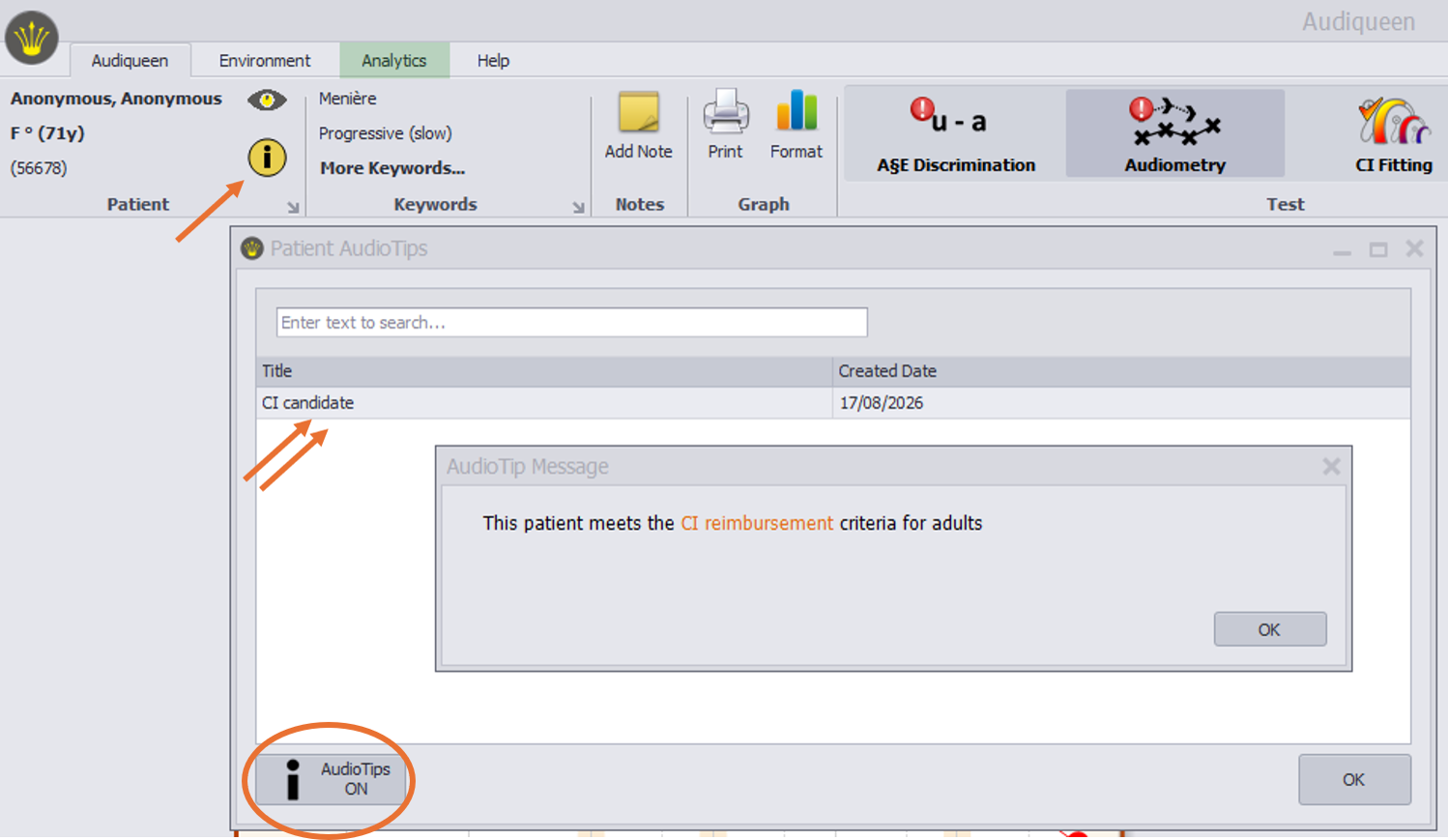 | The AudioTip icon in the Ribbon then also gets a yellow background. By clicking on it, the clinician can see which AudioTip applies to this patient. Double-clicking on the AudioTip title displays the message. If you no longer wish to receive AudioTip messages automatically, you can switch this feature off (and back on) using the ‘switch on/switch off’ button. |
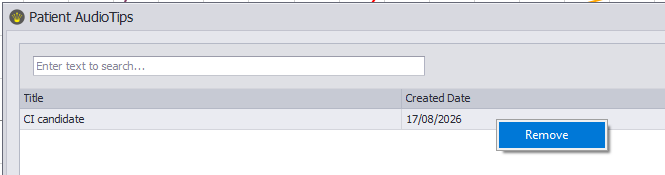 | If you no longer wish to link this AudioTip to this patient, you can delete it by right-clicking. |
Can I manually check whether a test result meets the criteria for an AudioTip?
An AudioTip appears automatically when you save a test result. If the result meets the criteria at that moment, the AudioTip is linked to that patient. However, it may happen that this link does not exist – for example, because the AudioTip has only just been created – whilst you would still like to check whether a patient’s existing results might, after all, meet the criteria. In that case, you can ask Audiqueen to check this for you.
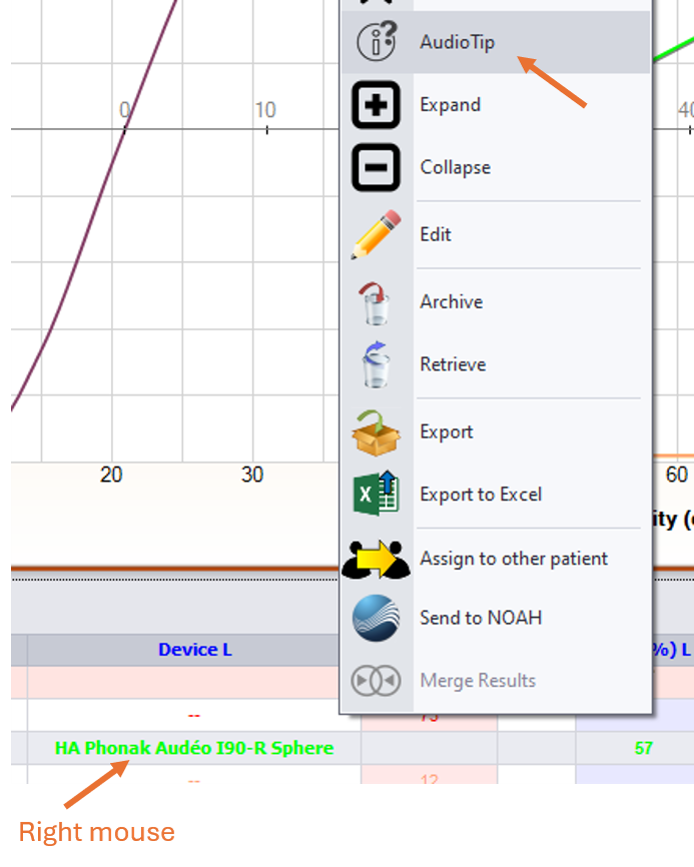 | To do this, select a result from the grid. You can now right-click to check whether there is an AudioTip the criteria of which this result matches. Audiqueen then checks whether that particular result meets the criteria for one or more AudioTips and, if so, displays the AudioTip. |
 | This feature is not available in the webviewer. |
Was this article helpful?
That’s Great!
Thank you for your feedback
Sorry! We couldn't be helpful
Thank you for your feedback
Feedback sent
We appreciate your effort and will try to fix the article