Audiqueen can be configured to automatically generate report files (PDF, Word, txt, etc.) whenever tests are performed.
This can either be by dumping the report files to a folder or by sending the report files through HL7 ORU messages.
Option (1): File dump
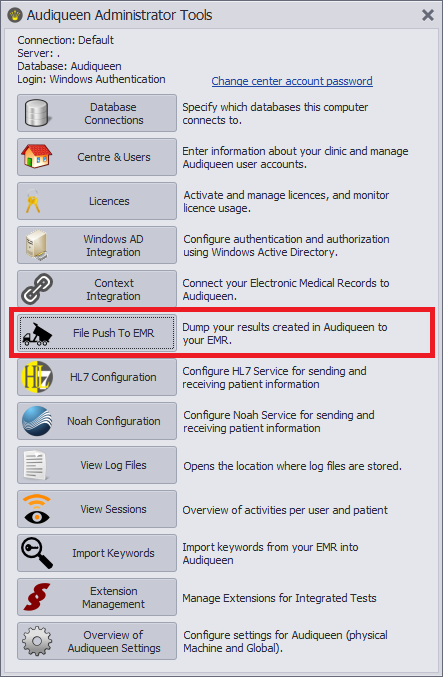
Open Administrator Tools and click on "File Push to EMR".
Check "Dump every new result" and select the dumping method (1). It is possible to dump a file not only for new results, but also each time a result is edited. For this, check the corresponding checkbox.

Now, every time a new result is saved (or edited, see below) in Audiqueen, a copy of it is sent to a shared folder. The location of this folder can be set in (4). Make sure that all Audiqueen users are able to access this folder.
The filename is defined in the corresponding fields (4) .
The file names or metadata should contain the required information for the HIS to assign the report to the correct patient and visit.
If the result consists of raw data (such as audiometry, speech audiometry, tympanometry, rhino(mano)metry, you can choose the template to be used to convert them into a pdf file (2).
Exclude result types and files
You can choose which result types to be included in the dump process (2).
It is also possible to exclude certain files from this procedure (3), such as files above a certain file size, or files with certain extensions.
Test Type Codes Used in PDF File Names
When Audiqueen exports test results as PDF files to an EMR, the system includes a test type code in the generated file name.
This code allows the receiving EMR to correctly identify, classify, and route the PDF based on the type of test performed.
The test type code used in PDF file names is identical to the test type code used in HL7 message exports.
It is determined by the Audiqueen test type associated with the exported result.
Test Type Code Mapping
| Test Type Code | Audiqueen Test Type |
|---|---|
| Audiometry | Audiometry |
| SpeechAudiometry | Speech Audiometry |
| Impedance | Impedance |
| Rhinometry | Rhinometry |
| Rhinomanometry | Rhinomanometry |
| SpeechInNoise | Speech In Noise |
| Detection | A§E Detection |
| Discrimination | A§E Discrimination |
| Identification | A§E Identification |
| LoudnessScaling | A§E Loudness Scaling |
| ILDLocalization | A§E ILD Localization |
| JustNoticeableDifference | A§E JND |
| AzimuthLocalization | A§E Azimuth Localization |
| BinauralBenefit | Binaural Benefit |
For Custom Tests, Audiqueen does not use a predefined code. Instead, the name of the custom test, exactly as defined by the user in Audiqueen, is inserted directly into the HL7 message.
Option (2): HL7 ORU dump
Audiqueen will send an ORU message with the dump file to the HL7 server.
The ORU message is sent upon the saving of a new or a modified test result. It is up to the receiving part to identify new or modified based on the DataFileID.
Like with File dump, you are also able to exclude result types and certain files from this procedure.
An Export Results Now button allows you to retrieve and dump all results between 2 dates. This is a rescue measure in case the HL7 dump has not functioned for a certain period.

More details can be found in our HL7 Integration Installation Manual.
Extra: Pass through Visit ID or other property while dumping a result
When a result gets dumped to the EMR, it is possible to also transfer the hospitals Visit ID or any other specific property (DumpSpec) by either File dump or HL7 ORU dump.
However, this is only possible when Audiqueen is configured with Context Integration, the EMR should pass this property while opening the patient in Audiqueen.
Was this article helpful?
That’s Great!
Thank you for your feedback
Sorry! We couldn't be helpful
Thank you for your feedback
Feedback sent
We appreciate your effort and will try to fix the article